
Draft and publish a schedule
Assign shifts, spot open shifts and release the schedule to the team.
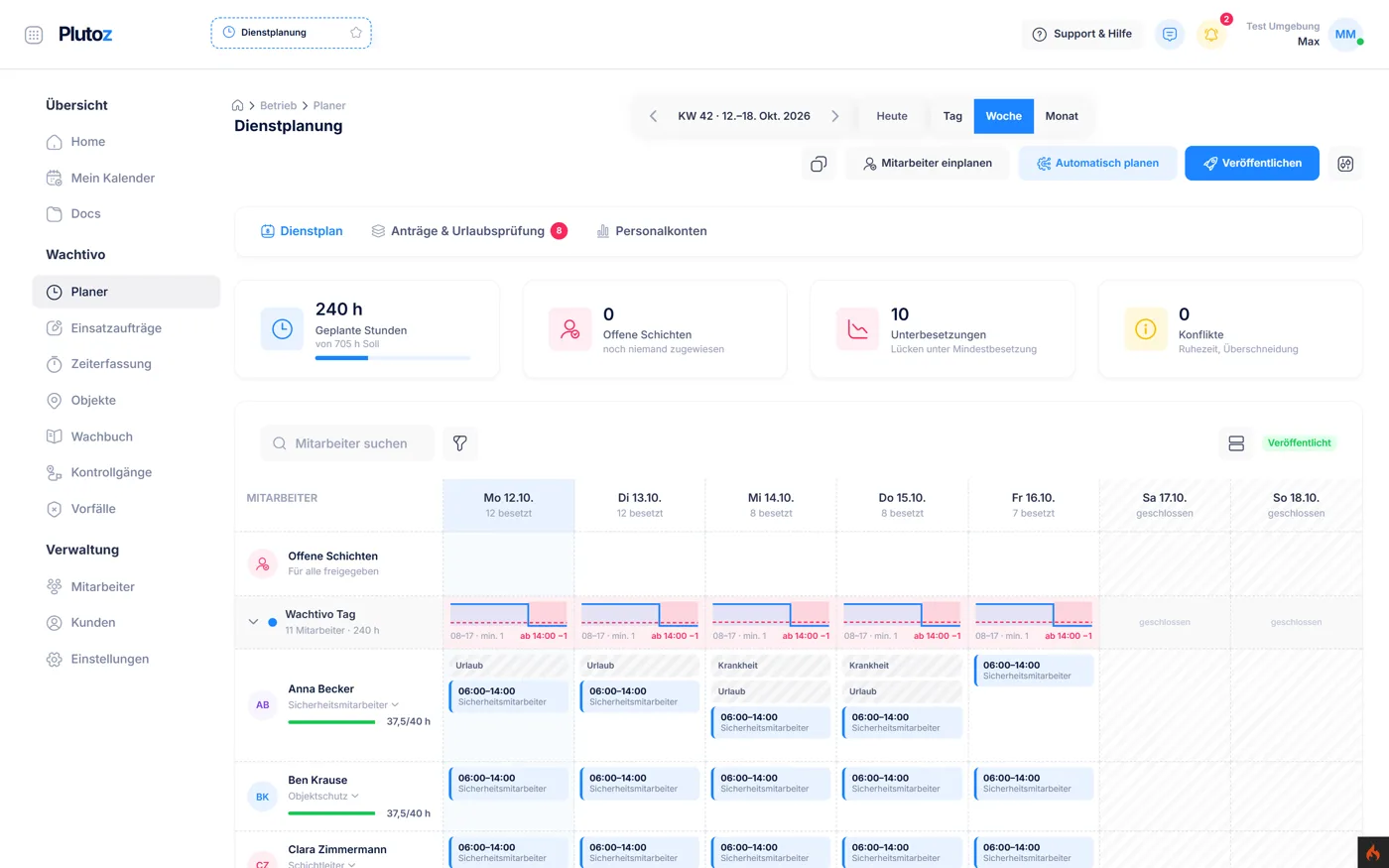
In the planner you define shifts per area. You switch between day, week and month views, assign shifts and see open shifts immediately.
How to proceed
- Set up the areas and their planning times.
- Assign shifts. Open shifts stay visible as such.
- Check staffing and flagged conflicts (Minimum staffing).
- Publish the schedule once it is ready for the team.
Changes stay in draft at first. The team only sees the published version.
Tips
- Use the staffing bars to close gaps before publishing.
- From Standard, Plutoz can create a draft automatically (Create an automatic suggestion).
- At gaps, Plutoz shows suitable replacements (Find replacements).
Frequently asked questions
Does the team see my changes immediately?
No. Changes stay in draft until you publish the schedule.
What do employees without planning permission see?
A simple list of their shifts (My schedule).
Was this page helpful?
Question not answered? Write to support